Table of Contents
“It works on my machine.” Every developer has said it, and every developer has heard it said back. Different PHP versions, a MySQL that will not start, an extension missing on one laptop and present on another. Docker ends that argument: your project carries its own PHP, its own web server and its own database, and the same thing runs on every machine that opens it.
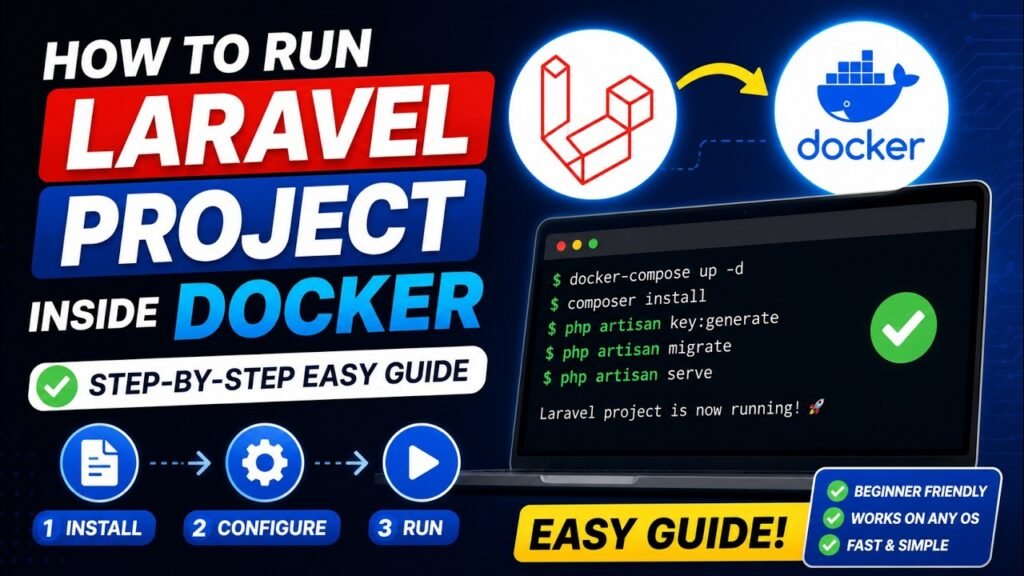
This guide gets a fresh Laravel project running in Docker in about ten minutes. Every file is printed here in full, with a copy button, so there is no PDF to download and nothing to guess. There is also a diagram of how the pieces fit, and a troubleshooting section for the errors you will actually hit.
What you need before you start:
✓ Docker Desktop installed and running (Windows, macOS or Linux)
✓ Composer, to create the Laravel project
✓ A code editor such as VS Code
✓ About 10 minutes, and roughly 1 GB of disk for the images
What You Are Actually Building
Before copying anything, look at the shape of it. You are not putting Laravel “in a box”. You are starting three small machines that talk to each other over a private network.
Click a Container
Each box above is one service in your compose.yaml. Click one to see what it does and which file configures it.
Step 1: Create the Laravel Project
composer create-project laravel/laravel docker-project
cd docker-project
code .
You now have a normal Laravel project. We are going to add exactly four files to it. Here is where each one goes:
One correction to the usual instructions: the nginx file is default.conf, not default.config. nginx only loads files ending in .conf, so the wrong name means your site silently serves the nginx welcome page instead of Laravel.
Step 2: The Dockerfile
This builds the PHP container: the PHP version, the extensions Laravel needs, and Composer. Create a file called Dockerfile in the project root, with no extension.
FROM php:8.3-fpm

# System packages the PHP extensions need
RUN apt-get update && apt-get install -y \
    git \
    curl \
    zip \
    unzip \
    libpng-dev \
    libonig-dev \
    libxml2-dev \
    libzip-dev \
 && rm -rf /var/lib/apt/lists/*

# The extensions a standard Laravel app expects
RUN docker-php-ext-install pdo_mysql mbstring exif pcntl bcmath gd zip

# Composer, copied straight from the official image
COPY --from=composer:2 /usr/bin/composer /usr/bin/composer

WORKDIR /var/www

EXPOSE 9000
CMD ["php-fpm"]
Why there is no COPY . . here. In development we mount the project folder into the container instead, so that editing a file on your laptop changes it inside the container instantly. Copying the code into the image as well would just be overwritten by that mount. For a production image you would copy the code in and run composer install --no-dev --optimize-autoloader during the build.
Step 3: compose.yaml
This is the file that describes all three containers and how they connect. Create compose.yaml in the project root.
services:

  # PHP + your Laravel code
  app:
    build: .
    container_name: laravel_app
    working_dir: /var/www
    volumes:
      - ./:/var/www
    depends_on:
      db:
        condition: service_healthy
    networks: [laravel]

  # The web server the browser talks to
  web:
    image: nginx:alpine
    container_name: laravel_nginx
    ports:
      - "8000:80"          # your machine : inside the container
    volumes:
      - ./:/var/www
      - ./docker/nginx/default.conf:/etc/nginx/conf.d/default.conf
    depends_on: [app]
    networks: [laravel]

  # The database
  db:
    image: mysql:8.0
    container_name: laravel_db
    environment:
      MYSQL_DATABASE: laravel
      MYSQL_USER: laravel
      MYSQL_PASSWORD: secret
      MYSQL_ROOT_PASSWORD: secret
    ports:
      - "3307:3306"        # 3307 avoids clashing with a local MySQL
    volumes:
      - dbdata:/var/lib/mysql
    healthcheck:
      test: ["CMD", "mysqladmin", "ping", "-h", "localhost", "-psecret"]
      interval: 5s
      retries: 10
    networks: [laravel]

volumes:
  dbdata:

networks:
  laravel:
    driver: bridge
Two things here that save you pain later. The healthcheck plus condition: service_healthy means Laravel waits until MySQL is genuinely ready, not merely started, which is the usual cause of “connection refused” on the very first run. And dbdata is a named volume, so your database survives docker compose down.
Step 4: The nginx Config
Create the folders docker/nginx/ and inside them a file named default.conf.
server {
    listen 80;
    index index.php index.html;

    # Laravel is served from /public, never from the project root
    root /var/www/public;

    client_max_body_size 20M;

    location / {
        # Hand everything to Laravel's router
        try_files $uri $uri/ /index.php?$query_string;
    }

    location ~ \.php$ {
        # "app" is the service name from compose.yaml
        fastcgi_pass app:9000;
        fastcgi_index index.php;
        include fastcgi_params;
        fastcgi_param SCRIPT_FILENAME $document_root$fastcgi_script_name;
    }

    location ~ /\.(?!well-known).* {
        deny all;
    }
}
Pointing root at the project folder instead of /var/www/public is the second most common mistake in this setup. It exposes your .env file, with your database password, to anyone who visits the site. Always serve from public.
Step 5: Edit the .env File
Laravel still thinks the database is on your laptop. Inside Docker it is on a machine called db. Open .env and change these lines:
APP_URL=http://localhost:8000

DB_CONNECTION=mysql
DB_HOST=localhost        # ✗ remove this line
DB_HOST=db               # ✓ the service name from compose.yaml
DB_PORT=3306             # 3306, not 3307: this is inside Docker
DB_DATABASE=laravel
DB_USERNAME=laravel
DB_PASSWORD=secret
This is the one step people skip, and it breaks everything. Inside a container, localhost means that container itself, not your laptop. The app container has no MySQL inside it, so Laravel tries to connect to nothing and you get SQLSTATE[HY000] [2002] Connection refused. The database lives at db, which is the name you gave the service.
Note the port too: 3306 in .env, because containers talk to each other on the internal port. The 3307 in compose.yaml is only for connecting from your own machine with a tool like TablePlus or MySQL Workbench.
Step 6: Start Everything
docker compose up -d --build
The first run downloads the images and builds your PHP container, so it may take a few minutes. After that it starts in seconds.
[+] Building 92.4s (11/11) FINISHED
[+] Running 5/5
 ✓ Network docker-project_laravel   Created
 ✓ Volume "docker-project_dbdata"   Created
 ✓ Container laravel_db             Healthy
 ✓ Container laravel_app            Started
 ✓ Container laravel_nginx          Started
Check that all three are running:
docker compose ps
NAME            IMAGE               STATUS                   PORTS
laravel_app     docker-project-app  Up 30 seconds            9000/tcp
laravel_db      mysql:8.0           Up 35 seconds (healthy)  0.0.0.0:3307->3306/tcp
laravel_nginx   nginx:alpine        Up 29 seconds            0.0.0.0:8000->80/tcp
Example output. Three containers, all up. You will see the same three in Docker Desktop.
🟢 laravel_app docker-project-app 9000 Running
🟢 laravel_db mysql:8.0 3307:3306 Running
An illustration of Docker Desktop. Clicking a container there shows its logs, which is the fastest way to find out why something will not start.
Step 7: Run the Laravel Setup Commands
PHP is no longer on your machine, so every Artisan command goes through the container. Prefix each one with docker compose exec app.
# Generate the application key
docker compose exec app php artisan key:generate

# Create the tables
docker compose exec app php artisan migrate

# Optional: fill them with sample data
docker compose exec app php artisan db:seed

# Let the web server write logs and cache
docker compose exec app chown -R www-data:www-data storage bootstrap/cache
Note the single colon. It is key:generate and db:seed, not key::generate. A double colon gives you “command not defined”, which is a confusing error for a typo.
Step 8: Open It
Go to http://localhost:8000.
The Laravel welcome page, served by nginx, rendered by PHP-FPM, both inside containers (illustration).
Edit a file to prove it is live. Open routes/web.php on your laptop, change the welcome route, and refresh. The change appears immediately, because your folder is mounted into the container. You do not rebuild for code changes, only for changes to the Dockerfile.
The Commands You Will Use Every Day
| What you want | Command |
|---|---|
| Start everything | docker compose up -d |
| Stop everything | docker compose down |
| Rebuild after editing the Dockerfile | docker compose up -d --build |
| See what is running | docker compose ps |
| Watch the logs | docker compose logs -f app |
| Any Artisan command | docker compose exec app php artisan <command> |
| Install a package | docker compose exec app composer require <package> |
| A shell inside the container | docker compose exec app bash |
| Open MySQL | docker compose exec db mysql -u laravel -psecret laravel |
| Start completely fresh (deletes the database) | docker compose down -v |
Tired of typing the prefix? Add an alias to your shell: alias dart="docker compose exec app php artisan". Then it is just dart migrate.
When It Does Not Work
These are the errors you are most likely to meet, with what each one actually means.
SQLSTATE[HY000] [2002] Connection refused
Almost always DB_HOST still set to localhost, or 127.0.0.1. It must be db. If you have already fixed it and the error persists, Laravel has cached the old config: run docker compose exec app php artisan config:clear. If it only happens on the very first start, your database was not ready yet, which the healthcheck in step 3 prevents.
502 Bad Gateway
nginx cannot reach PHP. Check that fastcgi_pass says app:9000 and that the service in compose.yaml really is called app. Then look at docker compose logs app to see whether the PHP container crashed on startup.
You see the nginx welcome page instead of Laravel
Your config file was not loaded. Check the name is exactly default.conf, check the volume line in compose.yaml maps it to /etc/nginx/conf.d/default.conf, and restart with docker compose restart web.
Error response from daemon: port is already allocated
Something on your machine already uses that port, often XAMPP, Laragon or another project. Either stop it, or change the left-hand number in compose.yaml, for example "8080:80", and use localhost:8080.
The page is blank, or “failed to open stream: Permission denied”
Laravel cannot write to storage or bootstrap/cache. Run docker compose exec app chown -R www-data:www-data storage bootstrap/cache. This is most common on Linux, where file ownership carries into the container.
the attribute `version` is obsolete, it will be ignored
Not an error, just a notice. Older guides begin the compose file with version: "3.8", which modern Docker no longer needs. Delete that first line and the message disappears. The file in step 3 above has no version line, so you will not see it.
Changes to my code do not appear
Check the volumes line ./:/var/www is present in both the app and web services. If it is, clear Laravel’s caches: docker compose exec app php artisan optimize:clear. On Windows, keep the project inside the WSL filesystem rather than under C:\Users\, which is both slow and prone to this.
What About Laravel Sail?
Laravel ships with Sail, an official wrapper that sets all of this up for you with one command. It is excellent, and you should know when to use which.
| Sail | Your own Docker setup | |
|---|---|---|
| Setup | One command, nothing to write | Four files, about ten minutes |
| Control | Opinionated defaults | You choose the PHP version, web server and extensions |
| Web server | PHP’s built-in server | nginx, the same as production |
| Understanding | Hidden behind a script | You know what every line does |
| Best for | Getting started fast on a personal project | Matching production, or a setup the whole team shares |
Honest advice: use Sail when you just want to code. Write your own compose file when the project goes to a real server, because a development environment shaped like production is how you stop surprises at deployment.
Common Questions
Do I need to know Linux to use Docker?
Only the basics: changing directory, listing files, and editing a file. The commands in this guide are the same on Windows, macOS and Linux, because Docker Desktop runs a small Linux machine for you.
Is this setup ready for production?
Not as it stands. For production you would copy the code into the image instead of mounting it, run composer install --no-dev --optimize-autoloader during the build, set APP_DEBUG=false, move passwords out of the compose file into real secrets, and add HTTPS. The structure stays the same, which is exactly why this is worth learning.
Where did my database go after `docker compose down`?
It is safe, in the named volume dbdata. Only docker compose down -v deletes it, and the -v is what makes the difference. Use that when you want a genuinely fresh start.
Can I use PostgreSQL instead of MySQL?
Yes. Swap the db service to postgres:16, install pdo_pgsql instead of pdo_mysql in the Dockerfile, and set DB_CONNECTION=pgsql with DB_PORT=5432. We have a full guide for PostgreSQL with Docker Compose.
Why is it so slow on Windows or macOS?
File sharing between the host and the container has a cost. On Windows, keep the project inside WSL 2 rather than on the Windows drive. On macOS, enable VirtioFS in Docker Desktop’s settings. Both make a large difference.
Do I still need PHP installed on my computer?
Only to run the initial composer create-project. After that, PHP lives in the container. You can even skip the local install by running Composer through a container, but having it locally is simpler to start with.
The Full Video Tutorial
Prefer to watch someone do it? Here is the whole process, start to finish:
More Laravel, Docker and Linux tutorials go up on the channel every week.
Read next: How to Set Up PostgreSQL with Docker Compose for Laravel, if you would rather use Postgres than MySQL.
Final Thoughts
Four files, one command, and your Laravel project now runs identically on every machine that opens it. If you remember nothing else, remember the two rules that cause almost every failed attempt: DB_HOST is db, not localhost, and nginx serves from /var/www/public.
Copy the four files above into a fresh project tonight and run it. If you get stuck on an error that is not in the troubleshooting list, paste it in the comments and I will help. I read every one.
If this saved you an evening of debugging, share it with a developer still fighting XAMPP.