Table of Contents
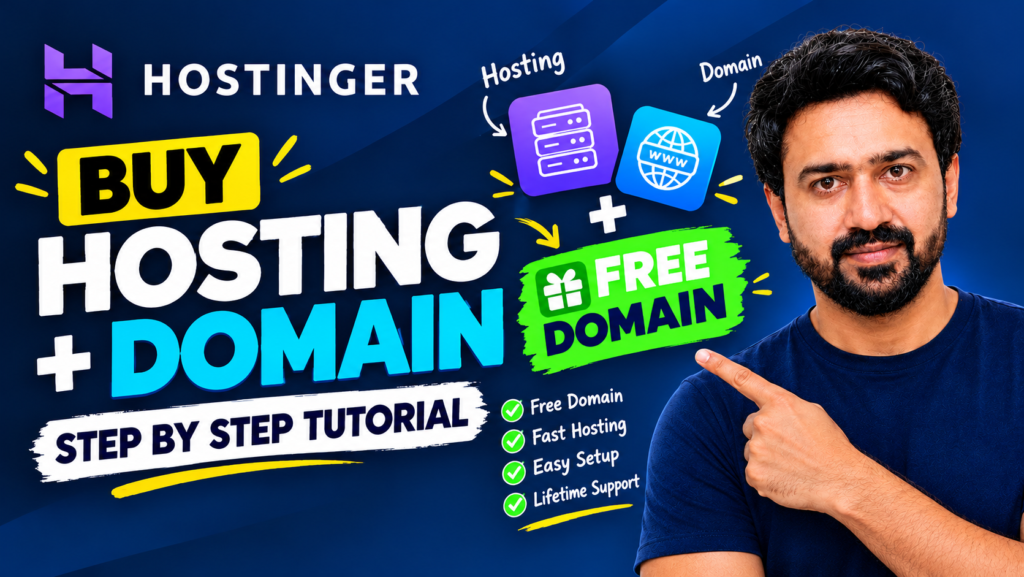
Want to create your own website but don’t know where to start? In this beginner-friendly guide, I’ll walk you through choosing a hosting plan, selecting a domain, completing checkout, verifying your payment, and reaching the Hostinger control panel.
Prefer watching instead? Follow the complete step-by-step video tutorial on YouTube.
Watch the Full YouTube Tutorial
Step 1: What Is Hostinger?
Hostinger is a web-hosting provider that offers services for websites, blogs, and online stores. Hosting stores your website’s files and makes them available online. A domain name is the address visitors type into their browser to find your site.
To get started, visit Hostinger’s official website. On the homepage, you can explore hosting services, check available plans, and look for a domain name for your brand.
Hostinger may also offer tools such as AI-assisted website creation and email-related features, depending on the plan and current offer. Check the current plan details before purchasing.
Get Hostinger HostingStep 2: Compare the Hosting Plans
Click Get Started or the relevant hosting button to open the available plans. In the plan comparison shown in my screenshots, the options include the following types of hosting:
- Single: A basic option for a small website or a beginner project.
- Premium: A flexible option for personal websites and projects that may need more than one website.
- Business: A plan aimed at websites that need additional resources and features.
- Cloud Startup: A higher-resource option for larger or growing websites.
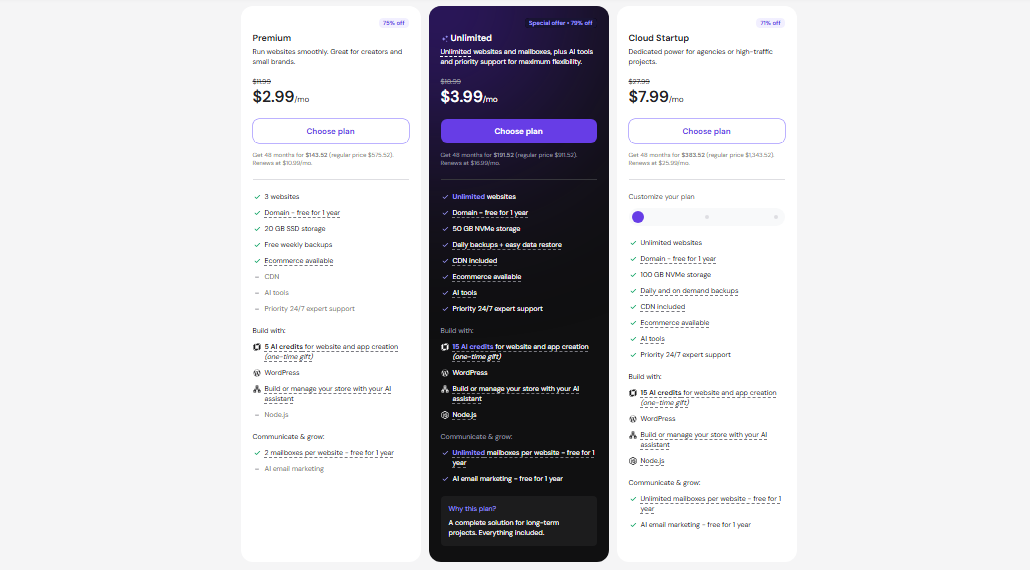
The right plan depends on your budget, how many websites you want to run, and the resources your website needs. Compare the current features and renewal prices instead of choosing by the introductory price alone.
Step 3: Choose a Billing Period
After choosing a plan, review the billing-period menu. Depending on the offer, you may see monthly and longer-term options such as 12, 24, or 48 months.
In my example, I chose the Premium plan for 12 months for my personal website. The longer billing periods may have a lower average monthly price, but they require paying for more time upfront.
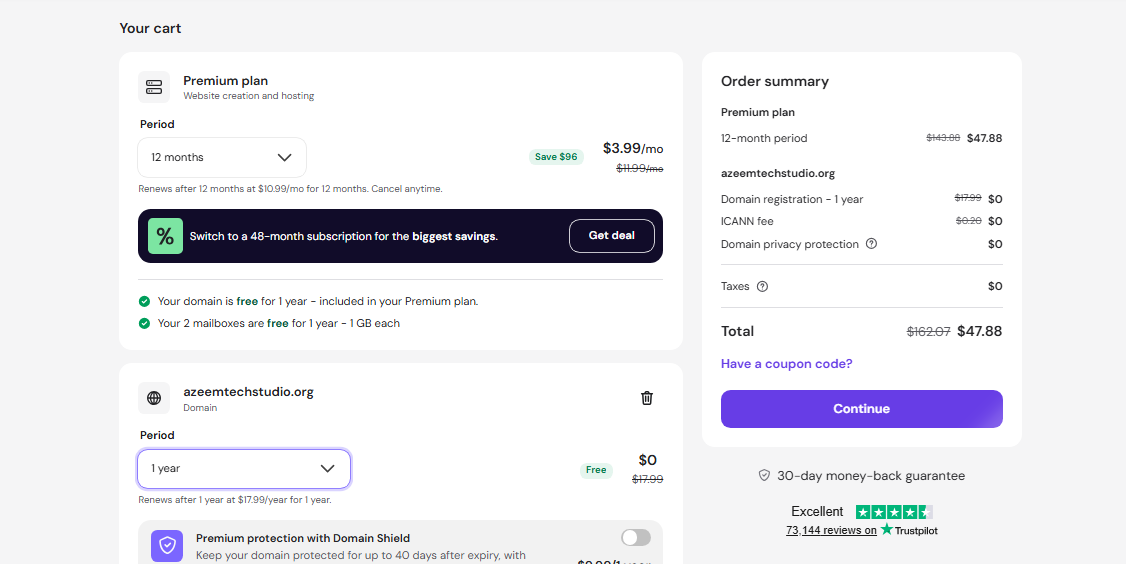
In the cart, confirm that the selected hosting term and any domain offer match what you intended to buy. Offers vary, so rely on the price and terms displayed in your own checkout.
Step 4: Search for Your Domain Name
Your domain is your website’s online address. Choose something easy to remember, spell, and connect to your brand.
- Enter your preferred domain name in Hostinger’s domain search.
- Check whether the name and extension you want are available.
- Select the available domain and review its registration period and price.
- Confirm whether it is included with your selected hosting plan or costs extra.
For my brand, I searched for a domain related to AzeemTechStudio. The screenshots show a domain selected in the cart. Before checkout, double-check the exact spelling of your own domain.
Domain registration and renewal prices depend on the extension and offer. A domain advertised as free for the first year may renew at a regular price afterward.
Step 5: Review the Cart and Order Total
Before continuing, carefully review the order summary. Make sure the hosting plan, billing period, domain, taxes, and total are correct. Remove any optional add-ons you do not want, and check whether domain privacy or other services are included or charged separately.
When everything looks correct, click Continue to move to the account and payment steps.
Step 6: Sign In or Create an Account
Hostinger will ask you to sign in or create an account. If Google sign-in is available, you can use it for a quick login. Otherwise, follow the on-screen instructions to register with your email address.
Use an email account you can access, because you may need it for order updates, account security, and website management.
Step 7: Enter Your Billing Information
Complete the billing form with accurate information requested at checkout. The fields may include your name, country, address, and other billing details. The exact fields can vary by country and payment method.
Review the information before moving to payment. Only enter your details on Hostinger’s official checkout page and make sure the website address is correct.
Step 8: Add Your Payment Details
Select one of the payment methods shown at checkout and enter the requested information. The available methods depend on your country and Hostinger’s current payment options.
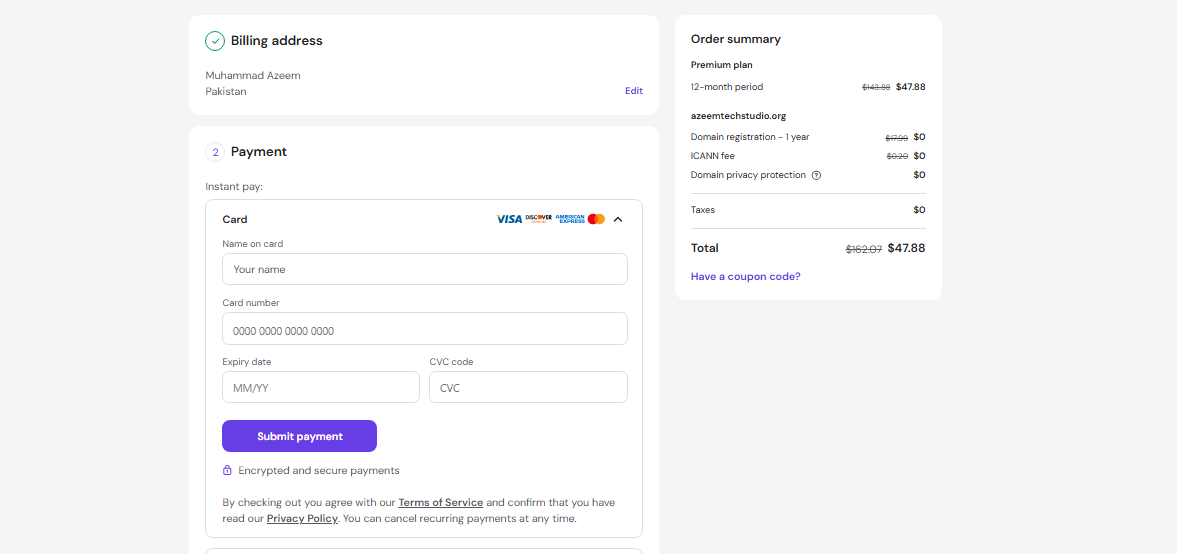
Check the order total one last time, then submit the payment using the checkout button. Your bank or payment provider may require an additional authentication step.
Step 9: Complete Payment Verification
For some transactions, a bank or payment provider may send a one-time verification code or ask you to approve the payment through another method. Follow the instructions displayed on your screen.
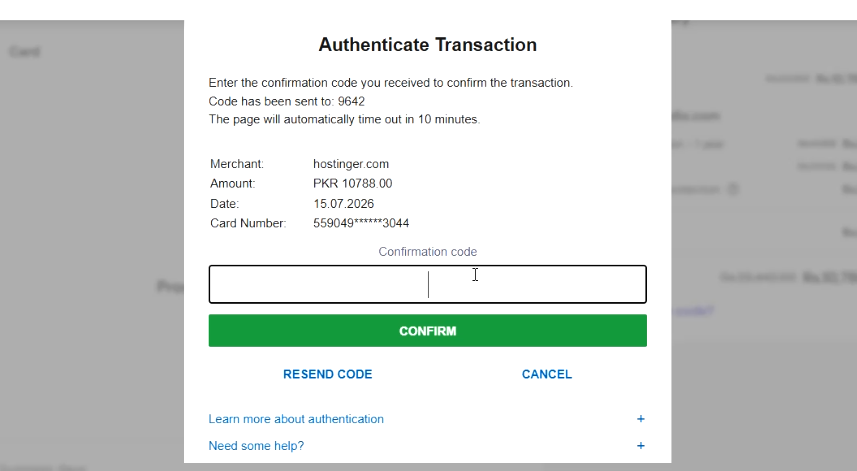
- Wait for the verification request or code if one is required.
- Enter it only on the legitimate checkout or bank verification page.
- Confirm the transaction and wait for the result.
- Check for an order confirmation or receipt before closing the page.
Step 10: Open the Hostinger Control Panel
After the purchase is confirmed, sign in to your Hostinger account and open the control panel, commonly called hPanel. This is where you manage hosting and begin setting up your website.
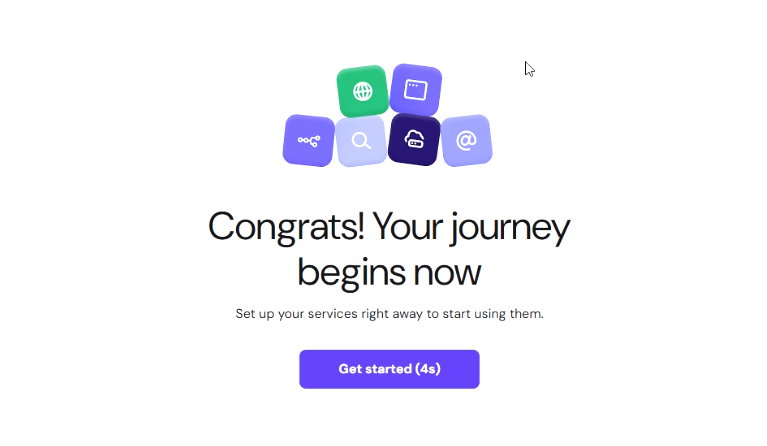
Depending on your account and hosting setup, you may see options to:
- Create a new website.
- Migrate an existing website.
- Use a website builder or available setup assistance.
- Manage your domain, email, hosting, and website settings.
Choose the option that matches your goal. If you are starting from scratch, select the new-website setup and follow the prompts. The next steps will depend on whether you choose WordPress, a website builder, or another supported setup.
Before You Finish: Quick Checklist
- ☐ Compare plan features and renewal prices.
- ☐ Confirm the billing period and total amount due.
- ☐ Check the domain spelling, registration term, and renewal cost.
- ☐ Review optional add-ons and taxes.
- ☐ Complete checkout securely and save the receipt.
- ☐ Sign in to hPanel and begin the website setup.
Final Thoughts
That is the basic process for purchasing hosting, selecting a domain, completing checkout, and reaching Hostinger’s control panel. Take your time comparing the plans and checking the total before paying. Once you are in hPanel, you can continue with the setup that suits your website.
If this guide helped you, share it with someone who wants to create their first website, and explore more practical tech tutorials on AzeemTechStudio.
Disclosure: This article describes the steps shown in the supplied screenshots. Plan names, pricing, promotions, included features, and checkout screens may change. Confirm the current details on Hostinger’s official website before purchasing.