Table of Contents
You click a button, and the page changes instantly. A menu opens, a message appears, a to-do list grows. The page never reloads. How does that work?
The answer is the DOM. It is the reason websites feel alive instead of like printed paper. In this guide you will see what the DOM is, look at its tree structure, and then change a real page with code, step by step. There is even a live playground where you can break things safely.
What you will learn (7 minute read):
✓ What the DOM is, in plain English
✓ How the DOM tree works (parent, child, sibling)
✓ How to select, change, add and remove elements
✓ How to react to clicks with events
✓ A complete mini project you can copy and run
What Is the DOM?
DOM stands for Document Object Model. When your browser loads a web page, it reads the HTML and builds a live model of the page in memory. That model is the DOM. It treats every part of the page (headings, paragraphs, images, buttons, even the text) as an object that JavaScript can find and change.
Think of it like this: HTML is the blueprint, and the DOM is the actual building. You can walk into the building and move furniture around. The blueprint on paper stays the same.
Quick test: “View Page Source” shows the original HTML. “Inspect” (right-click → Inspect) shows the current DOM, including any changes JavaScript made. They can look different!
The DOM Tree
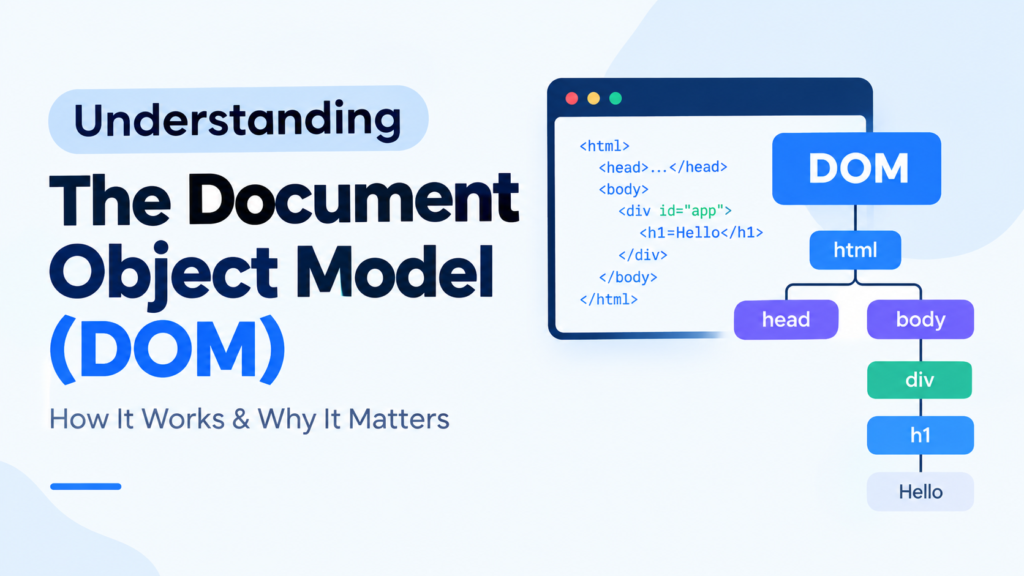
The DOM is organized as a tree, like a family tree. Everything starts from one root, and each item can have children. Here is a tiny HTML page:
<!DOCTYPE html>
<html>
  <head>
    <title>My Page</title>
  </head>
  <body>
    <h1 id="title">Hello</h1>
    <p class="intro">Welcome to <b>DOM</b>.</p>
    <ul>
      <li>One</li>
      <li>Two</li>
    </ul>
  </body>
</html>
And this is the DOM tree your browser builds from it:
- document
- <html>
- <head>
- <title>
- “My Page”
- <title>
- <body>
- <h1>id=”title”
- “Hello”
- <p>class=”intro”
- “Welcome to “
- <b>
- “DOM”
- “.”
- <ul>
- <li>
- “One”
- <li>
- “Two”
- <li>
- <h1>id=”title”
- <head>
- <html>
The DOM tree for the page above. Even plain text becomes its own node.
Family words you will hear a lot
| Word | Meaning | Example from the tree |
|---|---|---|
| Parent | The element directly above | <body> is the parent of <h1> |
| Child | An element directly inside another | <li> is a child of <ul> |
| Sibling | Elements sharing the same parent | <h1>, <p> and <ul> are siblings |
| Root | The top of the tree | document, whose first element is <html> |
Types of nodes
| Node type | What it is | Example |
|---|---|---|
| Document | The whole page. The root of the tree. | document |
| Element | An HTML tag | <h1>, <p>, <div> |
| Text | The words inside an element | “Hello” |
| Attribute | Extra information on an element | id, class, src, href |
| Comment | An HTML comment | <!– note –> |
The DOM Playground
This is a real mini web page. Click the buttons and watch two things: the page on the left changes, and the DOM tree on the right updates live. The code that just ran is shown below.
My Shopping List
- Milk
- Bread
// Click a button above to run some DOM codeStep 1: Select Elements
Before you can change something, you have to find it. JavaScript gives you a few ways to select elements. The modern, flexible one is querySelector, which uses the same selectors as CSS.
// Find one element by its id
const title = document.getElementById('title');

// Find the FIRST element that matches a CSS selector
const intro = document.querySelector('.intro');

// Find ALL elements that match
const items = document.querySelectorAll('ul li');

console.log(title.textContent);   // "Hello"
console.log(items.length);        // 2
Tip: If a selector finds nothing, querySelector returns null, and using it will cause an error. If you ever see “Cannot read properties of null”, your selector did not match or your script ran too early (see the mistakes table below).
Step 2: Change Text, Styles and Attributes
Once you have an element, you can change almost anything about it. Here is the code on the left and the result on the right:
const h = document.querySelector('#title');

// change the text
h.textContent = 'Hello, DOM!';

// change the style
h.style.color = '#2563eb';

// change an attribute
h.setAttribute('title', 'Hi!');

// add / remove a CSS class
h.classList.add('big');
Hello, DOM!
Welcome to DOM.
- One
- Two
textContent vs innerHTML: textContent sets plain text, which is always safe. innerHTML reads and writes HTML, but if you put user input into it, attackers can inject harmful scripts (this is called XSS). Use textContent unless you really need HTML.
Step 3: Create, Add and Remove Elements
You can also build new parts of the page from scratch. This is how to add a new item to the list:
const list = document.querySelector('ul');

// 1. create a new element
const li = document.createElement('li');

// 2. give it some content
li.textContent = 'Three';

// 3. put it into the page
list.append(li);          // adds at the end
// list.prepend(li);     adds at the start

// remove an element
list.firstElementChild.remove();
Every time you run this, the tree gets a new <li> node, exactly like in the playground above.
Step 4: Move Around the Tree (Traversal)
Because the DOM is a tree, every element knows its relatives. Starting from one element, you can walk to its parent, children and siblings:
const ul = document.querySelector('ul');

ul.parentElement;          // <body>
ul.children;               // all the <li> elements
ul.firstElementChild;      // the first <li> ("One")
ul.lastElementChild;       // the last <li> ("Two")
ul.previousElementSibling; // the <p> just before the list
ul.nextElementSibling;     // null, nothing comes after
Step 5: React to Users with Events
Events are how the page listens to the user: clicks, key presses, typing, form submits, mouse movement. You attach an event listener to an element, and a function runs whenever the event happens.
const button = document.querySelector('#myButton');

button.addEventListener('click', () => {
  alert('Button clicked!');
});

// Listen to typing in an input box
const input = document.querySelector('#nameInput');

input.addEventListener('input', (event) => {
  console.log(event.target.value);   // what the user typed so far
});
Mini Project: A To-Do List in 30 Lines
Let’s combine selecting, creating, adding and events into one working app. Copy it, save it as index.html, and open it in your browser. Type a task, press Add, and click a task to cross it off.
<!DOCTYPE html>
<html lang="en">
<head>
  <meta charset="UTF-8">
  <title>DOM To-Do</title>
  <style>
    body { font-family: system-ui, sans-serif; max-width: 420px; margin: 40px auto; padding: 0 16px; }
    li { cursor: pointer; padding: 6px 0; }
    li.done { text-decoration: line-through; color: #888; }
  </style>
</head>
<body>
  <h1>My To-Do List</h1>
  <input id="taskInput" placeholder="Add a task">
  <button id="addBtn">Add</button>
  <ul id="taskList"></ul>

  <script>
    const input = document.querySelector('#taskInput');
    const list  = document.querySelector('#taskList');

    document.querySelector('#addBtn').addEventListener('click', () => {
      const text = input.value.trim();
      if (text === '') return;

      const li = document.createElement('li');
      li.textContent = text;
      li.addEventListener('click', () => li.classList.toggle('done'));

      list.append(li);
      input.value = '';
      input.focus();
    });
  </script>
</body>
</html>
Challenge: Add a delete button to each task, or let the user press Enter to add a task. Try it yourself before searching for the answer. That is where the real learning happens.
Watch the DOM Change in Your Browser
You can see (and even edit) the DOM of any website, including this one.
The Elements panel is the DOM tree in your browser (illustration). Click the arrows to expand and collapse branches.
Try typing this in the Console while on any page. The page changes instantly:
document.body.style.background = 'lightblue';
Don’t worry, you can’t break the real website. You are only changing the copy of the page in your own browser. Refresh the page and everything goes back to normal. That is exactly the difference between the DOM and the HTML file.
Why the DOM Matters in Web Development
Example: update the page with data from a server
This is how modern sites show new content without refreshing. It fetches data, then updates one element in the DOM. (The URL below is only a placeholder.)
async function loadQuote() {
  const response = await fetch('https://api.example.com/quote');
  const data = await response.json();

  document.querySelector('#quote').textContent = data.text;
}

document.querySelector('#newQuote').addEventListener('click', loadQuote);
Common Mistakes (and How to Fix Them)
| Mistake | Fix |
|---|---|
| Script runs before the element exists (you get null) | Put your <script> at the end of <body>, or add the defer attribute to it. |
| Wrong selector | Check the spelling. Use # for ids and . for classes in querySelector. |
| Using innerHTML with user input | Use textContent instead to avoid XSS attacks. |
| Treating a NodeList like an array | querySelectorAll returns a NodeList. forEach works, but for map or filter use Array.from(list). |
| Expecting changes to survive a refresh | DOM changes only live in memory. To keep data, save it (for example in localStorage or a database). |
| Adding listeners to many items one by one | Add one listener to the parent and check event.target. This is called event delegation. |
A Simple Path to Learn the DOM
Best free reference: MDN Web Docs has clear explanations and examples for every DOM method mentioned here. Bookmark it, and look things up whenever you get stuck. Every developer does.
Common Questions
Is the DOM the same as HTML?
No. HTML is the text you write. The DOM is the live model the browser builds from that HTML. JavaScript changes the DOM, not your HTML file.
Is the DOM part of JavaScript?
No. The DOM is a browser feature (a standard API). JavaScript is the most common language used to work with it, but the DOM itself is language-independent.
What is the difference between textContent, innerText and innerHTML?
textContent gets or sets all the raw text. innerText is similar but respects how the text is displayed (for example, hidden text is skipped). innerHTML gets or sets HTML markup, which is more powerful but riskier with user input.
What is the “virtual DOM” in React?
It is a lightweight copy of the page that React keeps in memory. When something changes, React compares the copy to the previous one and updates only the parts of the real DOM that need to change.
Do I need jQuery to use the DOM?
No. Modern JavaScript can do almost everything jQuery did, using methods like querySelector and classList. Learn these first.
Final Thoughts
The DOM is simply your web page as a tree of objects that JavaScript can find and change. Learn to select elements, change them, add and remove them, and react to events, and you can build almost any interactive feature.
Run the to-do list project, then tell me in the comments which feature you added. I read every comment.
If this guide helped you, share it with a friend who is learning JavaScript. Thank you for reading!