
Table of Contents
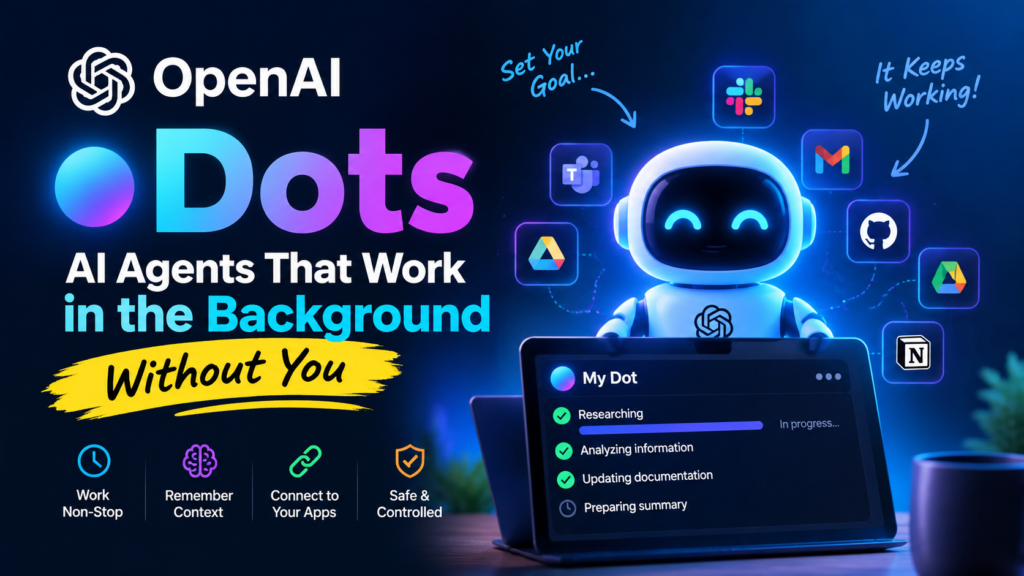
OpenAI just introduced Dots: AI agents that can keep working on your goals in the background, even after you close the chat.
So what exactly are Dots, how do they work, and who can use them right now? More importantly, what could they mean for developers and teams?
In this post
What Are OpenAI Dots?
Think of a dot as a personal AI assistant that doesn’t always wait for you to type a prompt. You give it a goal, decide what it can do on its own, and then it keeps working between conversations. When it has something useful to show you, or needs you to make a decision, it comes back to you.
Each dot runs on OpenAI’s flagship GPT-6 Astra model and gets its own cloud computer and web browser. You start with one primary dot, give it a name, and set it up around the way you work.
How Dots Are Different From ChatGPT and Codex
💬 Normal ChatGPT
Reactive. You ask something, it gives you an answer, and the work usually stops there.
🔁 Dots
Designed to keep going. They remember context, look for things that need attention, and keep working on a task for hours or even days.
Much of this was already possible if you built your own setup with Codex or another agent framework. The difference is that Dots puts the pieces together in one product. You get a computer, browser access, app connections, memory and approval controls without building the whole system yourself.
Key Features
Always-on work
Dots keep working in the background toward your goals instead of stopping when a chat ends.
Reach it anywhere
Message or call your dot through ChatGPT on desktop, web and mobile, plus Slack and Microsoft Teams. Text-message support is coming soon.
Shared context
Your dot keeps the same context across channels, so it knows what’s going on whether you use Slack or ChatGPT.
4,000+ apps
Connect to thousands of apps through OpenAI’s plugin ecosystem. You choose what it can access in ChatGPT’s app settings.
Proactive research
Dots can investigate problems without another prompt. If someone reports a bug in Slack, a dot could start looking into it right away.
Learns your style
Over time, your dot learns your preferences and the way you work, so its output becomes more tailored to you.
Safety and Control
Giving an AI agent its own computer and access to your apps naturally raises questions. OpenAI says Dots have several extra controls on top of ChatGPT’s existing protections.
✅ Approval rules
Rules decide when a dot can act on its own and when it needs to ask you first.
🔐 Password handling
On supported sites, a dot can use your saved passwords without the model ever seeing them.
🔌 App permissions
You decide which apps your dot can access, using the same app controls as ChatGPT.
👀 Human review
Dots can still make mistakes. Review important work before relying on it.
Specialist Dots and ChatGPT Space for Teams
Your primary dot works directly for you. OpenAI is also testing specialist dots for organizations: agents given specific jobs, with their own access, tools and credentials through a company’s existing systems.
OpenAI is working with Microsoft to connect these agents with Microsoft’s Agent 365 security controls.
Alongside Dots, OpenAI launched ChatGPT Space, a shared workspace where humans and dots work on the same files and projects.
The bigger idea: eventually having multiple dots working together as a team.
Who Can Use Dots Right Now?
| Plan | Availability |
|---|---|
| ChatGPT Pro | Rolling out Except in the EEA, Switzerland and the UK |
| Business Premium | Rolling out In all supported ChatGPT regions |
| Enterprise, Edu & Healthcare | Beta Off by default until a workspace admin turns it on |
- The first dot comes at no extra cost for Pro and Business Premium users.
- OpenAI hasn’t shared usage limits for heavy work or the price of extra and specialist dots yet.
- The rollout is gradual, so it may take a few days for Dots to appear on your account.
- You can create a dot from the ChatGPT desktop app (Mac or Windows) or ChatGPT on a desktop browser, not from mobile.
How to Get Started
- Open the ChatGPT desktop app or ChatGPT in a desktop browser.
- Follow the onboarding steps to create your dot and give it a proper name.
- Connect only the apps you actually want it to use.
- Give it a clear goal.
- Choose what your dot can do on its own and what needs your approval.
Tip: Don’t give a new dot access to everything right away. Start with something small, see how it behaves, and increase its permissions as you get more comfortable.
What This Means for Developers
For developers and small agencies, the interesting part is what Dots could handle without constant instructions. A dot could:
- Sort incoming bug reports
- Update project documentation
- Follow up on tasks in the background
But don’t hand it production access on day one. Start with narrow, low-risk tasks, keep approvals strict, and review what the dot produces before trusting it with clients, important data or production systems.
Final Thoughts
Dots are OpenAI’s clearest step yet from a “chatbot you talk to” toward an “agent that works for you.”
The individual pieces aren’t completely new. What’s interesting is that OpenAI is putting them together in one assistant that works through ChatGPT, Slack and Teams. There are still questions around pricing, usage limits and how reliable Dots will be in real-world work.
They’re worth trying, but for now, keep a human involved when the task actually matters.
Have you tried Dots yet? Share your experience in the comments below!