Table of Contents
Stop guessing and start finding the real cause of bugs. Learn three practical debugging techniques using browser DevTools, VS Code breakpoints, and application logs.
Have you ever spent an hour fixing a bug, only to discover that the problem was caused by one small mistake?
Maybe your API isn’t working, your website shows a blank screen, or your Laravel application suddenly throws an error. These problems happen to almost every developer, whether you’re a beginner or an experienced programmer.
The good news is that you don’t have to waste hours guessing what’s wrong. By using the right debugging techniques, you can identify errors faster, understand their root causes, and write more reliable code.
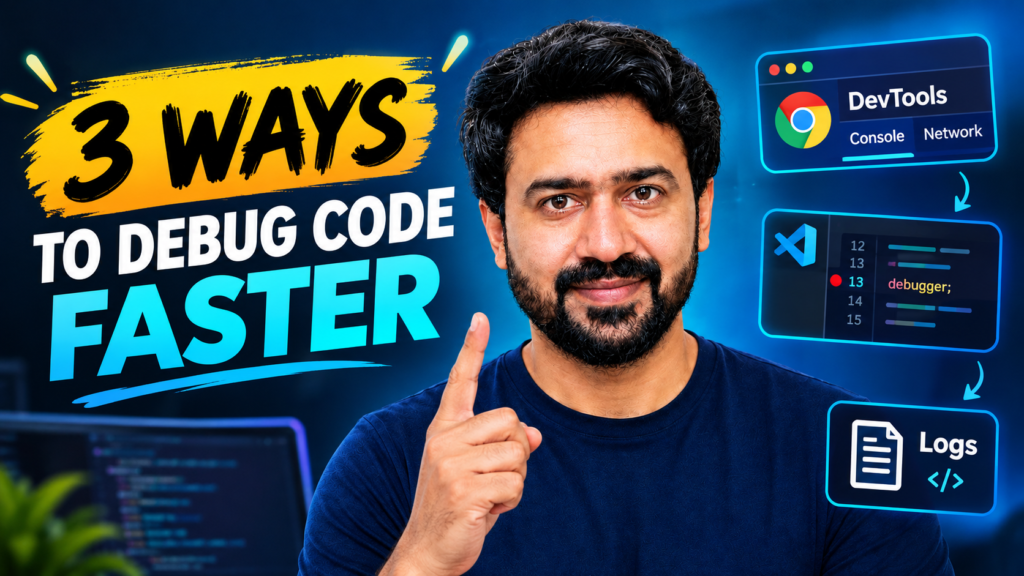
In this guide, you’ll learn three practical ways to debug code faster, with examples using browser Developer Tools, VS Code breakpoints, and Laravel application logs.
Use Browser Developer Tools to Find Errors
Browser Developer Tools are among the most useful debugging tools for web developers. They help you investigate JavaScript errors, API failures, network requests, and unexpected website behavior.
In Chrome or most modern browsers, right-click a webpage and select Inspect. Two tabs are especially useful when debugging web applications: Console and Network.
Check JavaScript Errors in the Console
The Console tab displays JavaScript errors, warnings, and messages from your application. For example, consider this code:
const user = undefined;

console.log(user.name);
This code produces an error because you’re trying to access the name property of a value that is undefined. The Console often shows the error message along with the file and line number where it occurred.
Instead of randomly changing your code, start by reading the error message and examining the relevant line.
Debug API Requests with the Network Tab
The Network tab is especially useful when your website communicates with an API. To investigate a failed request:
- Open Developer Tools and select the Network tab.
- Click the button or perform the action that triggers the API request.
- Select the request from the list.
- Check the status code, response, headers, and request URL.
If your application fetches user information but no data appears, the Network tab may reveal an HTTP error.
The requested resource or endpoint could not be found. Check the URL, route, and resource.
The server encountered an unexpected problem. Investigate the server-side logs and application code.
Use Breakpoints to Debug Code Step by Step
Many developers use console.log() in JavaScript or dd() in Laravel to inspect variable values. These techniques are useful for quick checks, but debugging becomes harder when a function contains multiple steps.
Breakpoints let you pause your program at a specific line and examine what is happening while the code executes.
What Is a Breakpoint?
A breakpoint tells your debugger to pause execution when the program reaches a particular line of code. Imagine a function that receives user data, validates it, and saves it to a database. If the data becomes incorrect somewhere in this process, a breakpoint lets you inspect it at each step.
How to Use Breakpoints in VS Code
- Open your project in Visual Studio Code.
- Open the source file you want to investigate.
- Click beside a line number to add a breakpoint.
- Start the appropriate debugger for your language and project.
- Run the code that triggers the problem.
- When execution pauses, inspect variables and follow the program step by step.
Useful Debugging Controls
- Continue: Resume execution until the next breakpoint.
- Step Over: Execute the current line without stepping into a called function.
- Step Into: Enter a function to investigate its internal behavior.
- Step Out: Finish the current function and return to its caller.
The exact controls available depend on the debugger and programming language you’re using.
Why Are Breakpoints Better Than Random Logging?
Imagine that an API receives the correct user ID, but the database query returns unexpected results. With breakpoints, you can check whether the input is correct, whether validation changes the data, whether the expected function executes, and whether the database query receives the expected values.
Read Error Messages and Check Application Logs
When something breaks, it can be tempting to change several lines of code until the error disappears. However, this approach can introduce additional bugs and make the original problem harder to understand. A better approach is to investigate the available evidence first.
Understand the Error Message
When an error occurs, look for these details:
- Exception type: What kind of error occurred?
- Error message: What operation failed?
- File name and line number: Where did the failure appear?
- Stack trace: Which functions or operations led to the error?
The reported line is not always where the underlying bug originated. Sometimes, the problem starts earlier in the request or in another function.
Check Laravel Application Logs
If you’re working with Laravel, application logs are an excellent place to investigate exceptions and unexpected behavior. A common log file location is:
storage/logs/laravel.logDepending on your logging configuration, Laravel may also create separate or dated log files. When your application crashes or returns an unexpected response, check the logs for relevant exceptions, database errors, and stack traces.
For example, if a database query references a column that doesn’t exist, the logs may reveal a SQL error that helps you identify the failing query. You can then inspect the relevant migration, model, or query builder code.
Security note: Avoid exposing sensitive information from production logs, and don’t display detailed exception traces to ordinary users.
Investigate Slow Database Queries
Debugging isn’t only about fixing errors. It also includes investigating performance problems. If a Laravel page loads many products and accesses each product’s category separately, it can create an N+1 query problem.
You can investigate query performance using Laravel query logging, Laravel Debugbar in a development environment, database query logs, and query execution plans.
For example, if each product needs its category, eager loading may reduce unnecessary queries:
$products = Product::with('category')->get();Always inspect the actual queries and relationships before changing your code. The correct solution depends on the application’s data access patterns.
Bonus Tip: Reproduce the Bug Before Fixing It
Before finishing your investigation, try to reproduce the problem consistently. Ask yourself:
- What exact steps cause the issue?
- Does it happen every time or only with certain input values?
- Does it affect all users or only specific users?
- Does the problem occur locally, in staging, or in production?
Once you can reproduce the bug, you can test potential fixes more reliably. After making a change, repeat the same steps to confirm that the issue is resolved. When possible, add an automated test that prevents the same bug from returning.
Common Debugging Mistakes to Avoid
Even experienced developers can make debugging harder than it needs to be. Avoid these common mistakes:
- Changing code without investigating: Check the error, request, or log before modifying anything.
- Ignoring the stack trace: It often provides valuable clues about the failure.
- Adding too many print statements: Use breakpoints when you need to follow execution through several steps.
- Assuming every API error is a frontend problem: Inspect the Network tab and investigate the server when necessary.
- Ignoring database performance: A page that works correctly can still have inefficient queries.
- Failing to retest the fix: Reproduce the original issue again after making changes.
Frequently Asked Questions
What is the fastest way to debug code?
Start by reproducing the issue, then inspect the error message and use the appropriate tools. Browser DevTools, breakpoints, and application logs help narrow down the root cause without random code changes.
How do I debug an API returning a 404 error?
Open the browser Network tab and inspect the request URL and response. Check whether the endpoint or resource exists, whether the route is correct, and whether the request uses the expected method.
How do I investigate a 500 error in Laravel?
Inspect the failed request in the Network tab, then review the Laravel application logs, commonly found under storage/logs. Look for the exception message and stack trace to identify the underlying server-side problem.
Are breakpoints better than console.log?
Both are useful. Console logging is quick for simple checks, while breakpoints are often more effective when you need to inspect multiple variables and follow execution step by step.
How can I find slow database queries in Laravel?
Use query logging, Laravel Debugbar in development, or database query tools to inspect query count and execution time. If you identify an N+1 issue, eager loading may help when it fits the relationship being accessed.
Final Thoughts
Debugging doesn’t have to mean spending hours guessing what went wrong. Use browser Developer Tools to investigate JavaScript errors and failed API requests, breakpoints to follow code step by step, and logs to identify exceptions and database issues.
▶ Watch Full Tutorial on YouTube
Remember to reproduce the bug before fixing it and test the same scenario afterward. The goal isn’t simply to make the error disappear—it’s to understand the root cause and fix the problem correctly.
Enjoyed this guide? Visit AzeemTechStudio for more practical programming tutorials, Laravel guides, and web development tips. Subscribe to our YouTube channel for hands-on coding tutorials.
What’s the most frustrating bug you’ve ever fixed? Share your experience in the comments!