Table of Contents
Want to use Linux on your Windows laptop, but you don’t want to wipe your PC, restart into another system, or set up a slow virtual machine? There is a much easier way.
With WSL (Windows Subsystem for Linux), you can run a real Ubuntu terminal right inside Windows 11. It installs with one command, starts in seconds, and does not touch your Windows files. In this guide I will show you every step, with pictures, and what to do if something goes wrong.
What you will have at the end (about 10 minutes):
✓ Ubuntu running inside Windows 11
✓ Your own Linux username and password
✓ An updated Ubuntu with the Linux commands ready to use
✓ Access to your files from both Windows and Ubuntu
Before You Start: Quick Checklist
| You need | Details |
|---|---|
| Windows 11 | Windows 10 version 21H2 or newer also works. |
| Virtualization turned on | Most PCs have it on already. If the install fails, we fix this in the troubleshooting section. |
| Internet connection | Ubuntu is downloaded during the install, so keep your connection stable. |
| Admin rights | Your Windows account needs to be an administrator. |
Install Ubuntu with One Command
AppRun as administrator
Right-click Command Prompt and choose “Run as administrator”.
wsl --install -d Ubuntu
Windows now downloads and installs Ubuntu for you. You will see progress messages like these:
C:\Windows\system32> wsl --install -d Ubuntu
Installing: Windows Subsystem for Linux
Installing: Ubuntu
Ubuntu has been installed.
Launching Ubuntu...
The exact wording may differ a little depending on your Windows version.
It asks for a restart? If this is your first time using WSL, Windows may ask you to restart the PC. That is normal. Restart, and Ubuntu will open by itself to continue the setup.
Tip: Want to see which versions of Ubuntu you can install? Run wsl --list --online. The plain name Ubuntu gives you the default, which is the right choice for most people.
Create Your Ubuntu Username and Password
When the installation finishes, an Ubuntu window opens and asks you to create a user. This account is only for Ubuntu. It is not your Windows account.
Installing, this may take a few minutes...
Please create a default UNIX user account. The username does not need to match your Windows username.
For more information visit: https://aka.ms/wslusers
Enter new UNIX username: azeem
New password: (nothing shows while you type)
Retype new password:
passwd: password updated successfully
Installation successful!
Example only. Choose your own username.
Update Ubuntu
The first thing every Linux user does is update the package list. It makes sure you get the latest software and security fixes. Run these two commands inside the Ubuntu window:
sudo apt update
sudo apt upgrade -y
It asks for your Ubuntu password, because sudo means “run this as administrator”. It may take a few minutes. Wait until you see your prompt again.
Check That Ubuntu Is Working
Let’s confirm everything is installed. In Ubuntu, run:
lsb_release -a
azeem@PC:~$ lsb_release -a
Distributor ID: Ubuntu
Description:    Ubuntu XX.XX LTS
Release:        XX.XX
Codename:       xxxx
Your version number will be shown instead of XX.XX. Seeing “Ubuntu” means it works.
You can also check from Windows. Open Command Prompt (a normal one is fine) and run:
wsl -l -v
  NAME      STATE           VERSION
* Ubuntu    Running         2
VERSION 2 means you are on WSL 2, the faster and recommended version.
STEP 5Open Ubuntu Any Time
You do not need the command line to open Ubuntu again. Just click Start, type Ubuntu, and click the app.
AppOpen
You can also pin Ubuntu to your taskbar, or pick it from the dropdown in Windows Terminal.
Congratulations! You now have a real Ubuntu Linux terminal on Windows 11.
Your First Linux Commands
Here are a few commands to try right now. Do not worry, you can’t break Windows from here.
pwd
ls
mkdir my-first-folder
cd my-first-folder
echo "Hello from Ubuntu on Windows!" > hello.txt
cat hello.txt
| Command | What it does |
|---|---|
pwd | Shows which folder you are in. |
ls | Lists the files in this folder. |
mkdir name | Creates a new folder. |
cd name | Moves into a folder. Use cd .. to go back. |
cat file | Prints what is inside a file. |
sudo apt install name | Installs software, like Git, Python or Node.js. |
Using Your Windows Files from Ubuntu (and the Other Way Around)
This is one of the best parts of WSL. Both systems can see each other’s files.
/mnt/c. For example, run cd /mnt/c/Users.\\wsl$ in the address bar to see your Ubuntu files.Your Ubuntu home folder, shown inside Windows File Explorer.
Speed tip: For coding projects, keep your files inside the Ubuntu home folder (like ~/projects) instead of /mnt/c. Linux tools work much faster there.
Bonus: Use It with VS Code
If you use Visual Studio Code, install the WSL extension. Then, inside any Ubuntu folder, run:
code .
VS Code opens right in that folder, connected to Ubuntu. You write code in your favorite Windows editor, and it runs in Linux. It feels like one system instead of two.
Why WSL Instead of Dual Boot or a Virtual Machine?
| WSL | Virtual Machine | Dual Boot | |
|---|---|---|---|
| Starts in | A few seconds | Around a minute | A full restart |
| Memory use | Only while running | A big chunk, always reserved | None, but one system at a time |
| Risk to Windows | None | Very low | Higher (partitions) |
| Best for | Coding, learning, servers | Testing full desktops | Using Linux full time |
Most developer tools, like Node.js, Python, Git and Docker, are built for Linux first. With WSL you install them with one sudo apt install command, instead of hunting for Windows installers. Also, most web servers run Ubuntu, so testing your project in Ubuntu on your own PC means fewer surprises when you go live.
Handy WSL Commands to Save
Run these from Windows Command Prompt or PowerShell:
| Command | What it does |
|---|---|
wsl | Opens your default Linux distro. |
wsl -l -v | Lists installed distros and their state. |
wsl --update | Updates WSL itself to the latest version. |
wsl --shutdown | Stops all running WSL instances (useful if something feels stuck). |
wsl --list --online | Shows all distros available to install. |
Troubleshooting: If Something Goes Wrong
| Problem | How to fix it |
|---|---|
| Error mentioning virtualization (like 0x80370102) | Virtualization is switched off. Restart your PC, enter the BIOS/UEFI settings, and enable Intel VT-x or AMD-V (SVM Mode). Then try again. |
| “wsl is not recognized” | Your Windows is too old. Update Windows 11 (or Windows 10 to 21H2 or newer) and try again. |
| Nothing happens after the install | Restart your PC. After the restart, Ubuntu should open and continue the setup. If not, open Ubuntu from the Start menu. |
| Download seems stuck | Check your internet, then close the window and run the install command again. |
| I forgot my Ubuntu password | In Command Prompt run wsl -u root, then type passwd yourusername and set a new one. |
Common Questions
Is WSL free?
Yes. WSL and Ubuntu are completely free. You do not need to pay for anything.
Will WSL slow down my PC?
No. WSL only uses memory while it is running. When you close Ubuntu, that memory goes back to Windows.
Do I need to remove Windows or lose my files?
No. Windows stays exactly as it is. Ubuntu runs next to it, and your Windows files are not touched.
How do I uninstall Ubuntu if I don’t want it anymore?
Run wsl --unregister Ubuntu in Command Prompt. Be careful: this permanently deletes everything stored inside that Ubuntu, so copy anything important out first. You can always install a fresh Ubuntu again with the same install command.
What is the difference between WSL 1 and WSL 2?
WSL 2 is newer, faster, and runs a real Linux kernel. It is the default on recent Windows versions, and it is what you want. Use wsl -l -v to check which one you have.
Final Thoughts
One command, a username, a password, and you have a full Ubuntu terminal on Windows 11. It is the easiest and safest way to start learning Linux, and it is the setup many developers use every day.
What will you try first: Git, Python, Node.js or Docker? Tell me in the comments. I read every one, and I am happy to help if you got stuck.
Watch the Full Video Tutorial
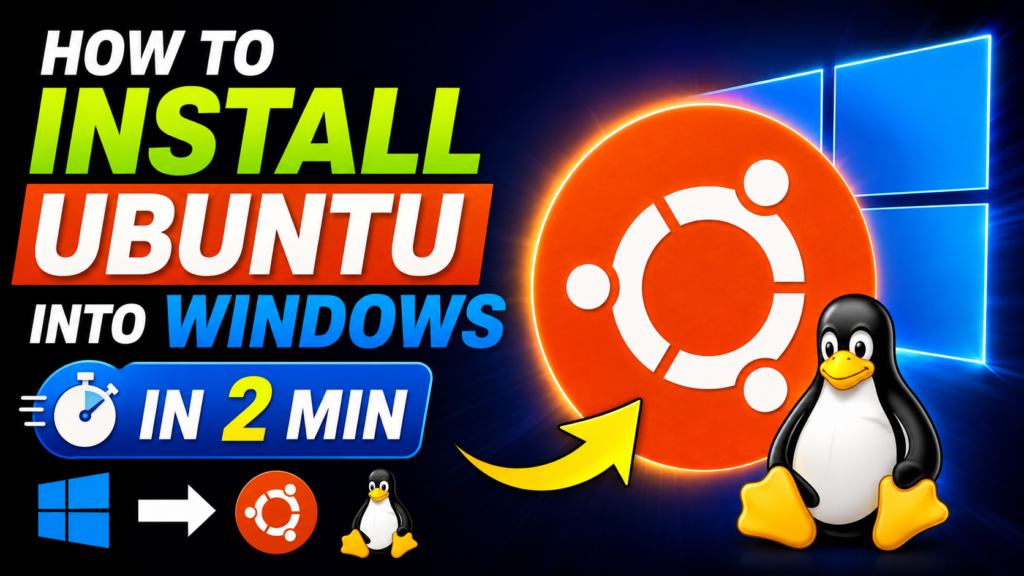
Want to see it done on screen, from start to finish in about two minutes? Watch the video below and follow along.
▶ Watch on YouTube Subscribe to the Channel
If this guide helped you, share it with a friend who wants to try Linux. Thank you for reading!